First Steps
Usage
- Open the sendance-cloud: Client (client.sendance.at) in a supported browser ( see System requirements).
- Log in with the user name and password provided.
- Ensure that Bluetooth is activated on your PC or laptop.
- Ensure that your smart device(s) is charged and switched on (blue LED light is blinking, see Control elements electronics).
- Click the "+ Connect Device" button in the left sidebar

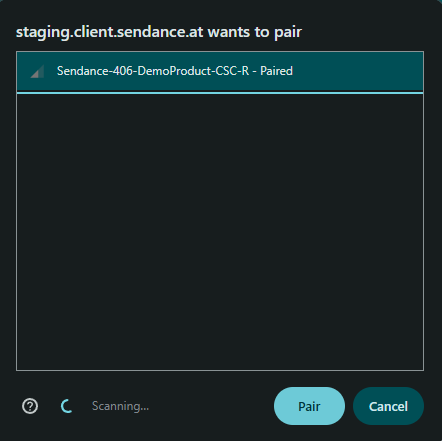
- Select the device you want to connect to from the system dialog and click on "Pair".
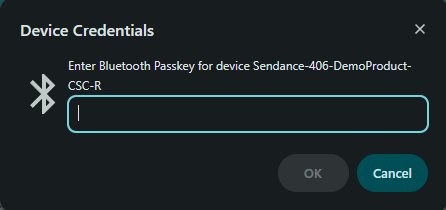
- If you're connecting for the first time, Bluetooth authentication is required: Enter the passkey (PIN) as specified on your shipping documents (by default: "010101").
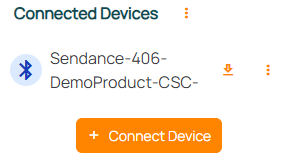
- The Bluetooth connection is established. If the connection is successful, the device's name appears in the list of devices beneath "Connect Devices" / above the "+ Connect Device" button.
- To connect more devices, repeat the steps 4-8. We recommend a maximum of 3 devices to be connected at the same time.
- Then, head directly to the Live Data Workspace and start configuring your data views!
System requirements
For the sendance-cloud you need a stable internet connection and an internet browser with Web Bluetooth support:
- Chrome from version 56
- Edge from version 79
- Opera from version 43
Currently, Windows 10 and 11 are officially supported as operating systems. Furthermore, your PC or laptop must support Bluetooth 4.0 (BLE) or higher. A dedicated Bluetooth USB-dongle can augment Bluetooth connection quality and signal strength.
Control elements electronics
- Sensotronic 3.x.x (dispatches from 2026-01-01)
- Sensotronic 2.x.x (dispatches from 2022-12-21 to 2026-01-01)
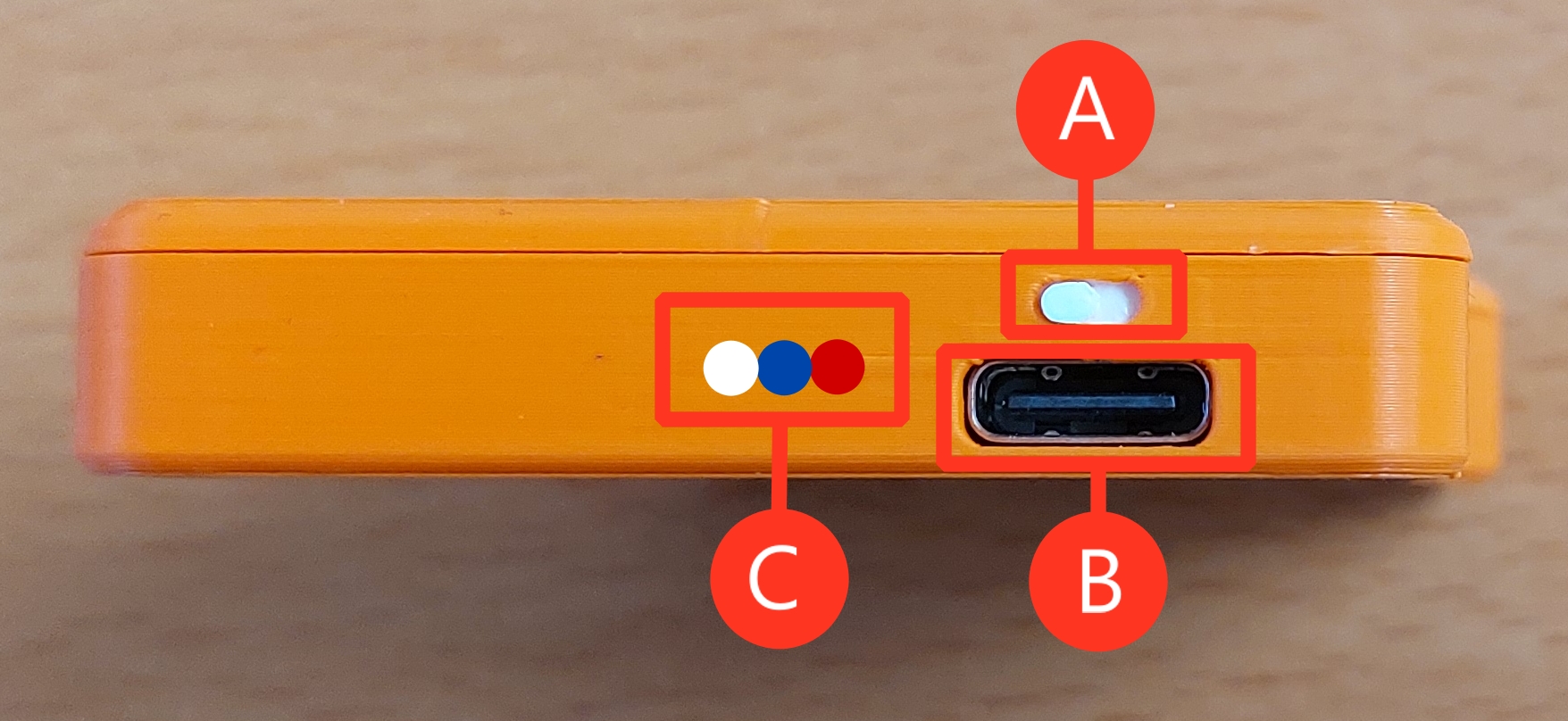
(A) Slide switch for switching on and off:
- You can move the slide switch to the left or right to switch the electronics on or off.
(B) USB-C socket
- You can use this to charge the battery. To do so, use a commercially available USB-C cable and plug in the sendance-grid while it is turned on.
(C) Status LEDs:
- white LED:
- solid glow: electronics are charging
- solid glow stops: electronics fully charged
- fast flashing: electronics may not be switched on (and therefore not charging). If the electronics are switched on, the battery may be defective.
- red LED:
- continuous red glow: bootloader problem at startup. Try turning the electronics off and on again, otherwise refer to the FAQ.
- short flashing when switching on: successful startup
- blue LED:
- slow flashing: electronics running but no active Bluetooth connection to the sendance-cloud.
- continuous glow: electronics running with active Bluetooth connection to the sendance-cloud.
- no LEDs are turned on:
- This means the device is either "asleep" or the battery level is too low. As such, try turning it on again with the switch, and/or charge it.
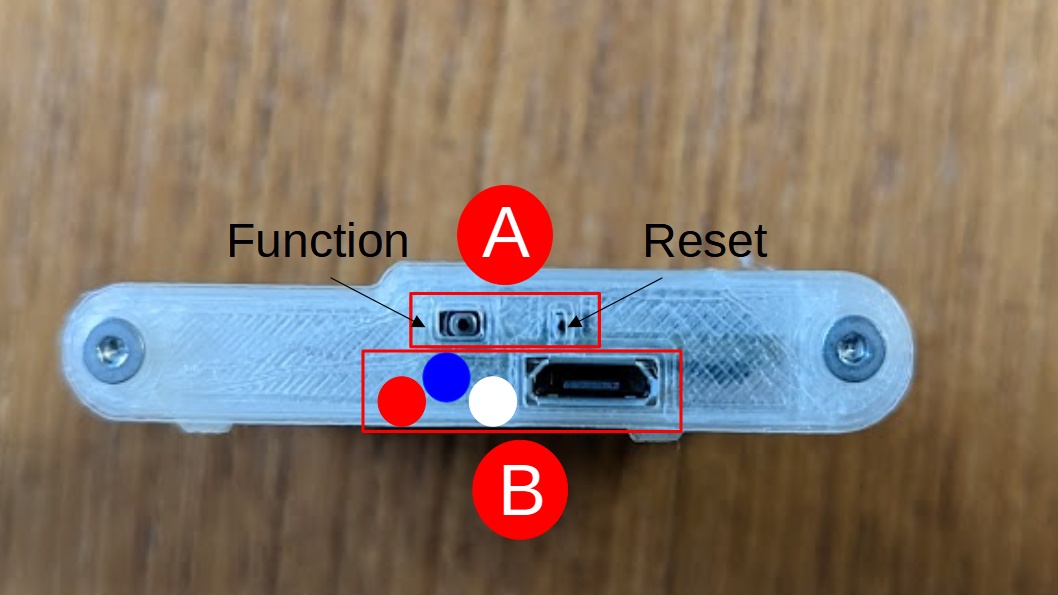
(A) "Function" and "Reset" buttons:
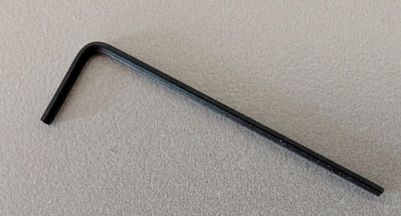
Using the tool supplied with the smart device (see illustration on the bottom) or a standard toothpick, you can actuate these buttons:
- The "Function" button (bigger hole, left) causes the device to "sleep" (save battery but also turn off Bluetooth and
all other functionality like measuring data or recording). When it's pressed, the red LED lights up:
- Keep the button pressed until red LED stops being lit (ca. 3 seconds). Then, let go of the button, to set it to " sleep".
- To wake-up the device afterward, press the button once. The blue LED starts blinking again.
Keep the button pressed for longer than 3 seconds. Then, the red LED will light up and you can release the button. After about 2 seconds, the electronics will go into "sleep" mode.
- The "Reset" button (smaller hole, right) causes the device to restart. This may interrupt existing Bluetooth connections, ongoing on-device recordings, etc.
Please be aware that you cannot fully turn off the electronics, only set it "sleeping" with the "Function" button. Accordingly, the battery charge may become low after 7-10 days in "sleep" mode.
(B) Micro-USB socket and status LEDs:
- micro-USB socket: you can use this to charge the battery. To do so, use a commercially available micro-USB cable and plug in the sendance-grid while it is turned on.
- white LED:
- solid glow: electronics are charging
- solid glow stops: electronics fully charged
- fast flashing: electronics may not be switched on (and therefore not charging). If the electronics are switched on, the battery may be defective.
- red LED:
- continuous red glow: bootloader problem at startup. Try pressing the Reset button, otherwise refer to the FAQ.
- short flashing when switching on: successful startup
- blue LED:
- slow flashing: electronics running but no active Bluetooth connection to the sendance-cloud.
- continuous glow: electronics running with active Bluetooth connection to the sendance-cloud.
- no LEDs are turned on:
- This means the device is either "asleep" or the battery level is too low. As such, try turning it on again with the "Function" or "Reset" buttons, and/or charge it.