Connected Devices
The Connected Devices list in the left sidebar of the sendance-cloud: Client allows to monitor or disconnect devices, apply device quick settings and connect new devices.
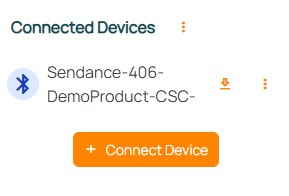
The "Connected Devices" sidebar to monitor and control connected devices or connect new devices
Select a section for more information:
Overview
Each currently connected bluetooth device is listed in the Connected Devices sidebar. There, you can disconnect devices, view device infos or perform actions such as taring. To perform actions,for all currently connected devices, select the "More" menu next to the section title "Connected Devices". To execute them with specific devices, use the same menu next to the respective device's name.
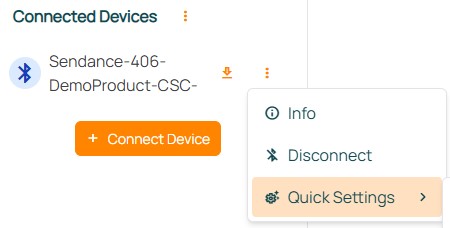
The Connected Devices "More" menu allows to access device infos, execute actions or change Quick Settings
Device Monitoring
Each currently connected bluetooth device entry starts with the bluetooth symbol . If the symbol is red, there may be an issue with your device.
To get more details about each device, access the "More" menu and select "Info". Here, useful information like the current Battery Level is displayed.
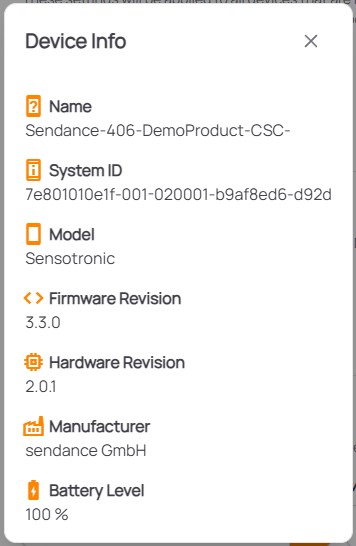
The Connected Devices "More" menu allows to access device infos, execute actions or change Quick Settings
Quick Settings
Quick settings can be applied via the "More" menu . They can be used on each device separately (using the menu next to the respective device's name) or for multiple device's (when using the menu next the "Connected Devices" heading). Several options are available:
Taring: When clicking "Apply", the device's current sensor values are used as an offset for future sensor data output. When clicking "Reset" this offset is removed.
Set Period: Allows to customize the used sensor update period (inverse of frequency). This setting is overwritten/reset when the device is powered off or reconnected to the client. In the latter case, the User Preference's period setting is applied, overwriting this quick setting.